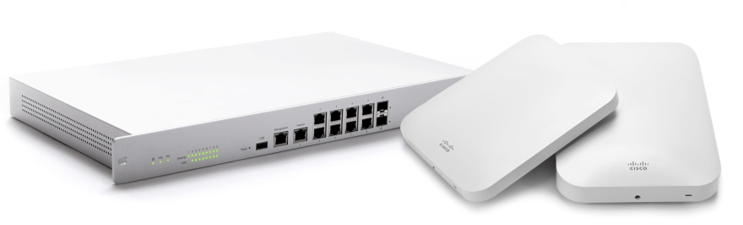
Content filtering blocks certain categories of websites based on organizational needs/policies. Here’s a quick walkthrough of how to set this up for Meraki MX devices:
Step 1: On the Meraki Dashboard, navigate to Security & SD-WAN > Configure > Content Filtering.
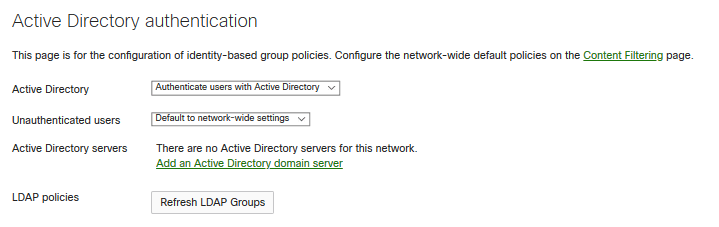
Step 2: Identity-based policy authentication can be used through Active Directory:

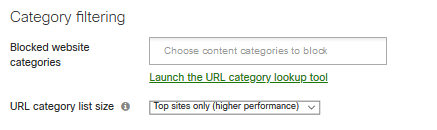
Step 3: Category filtering is the quickest way to block whole categories.
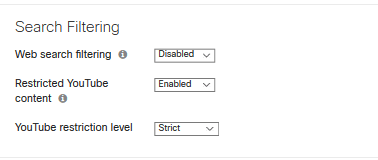
Step 4: Configure any web search filtering along with YouTube restriction filtering.
Step 5: Next, go to URL blocking to block or whitelist any specific URLs or patterns
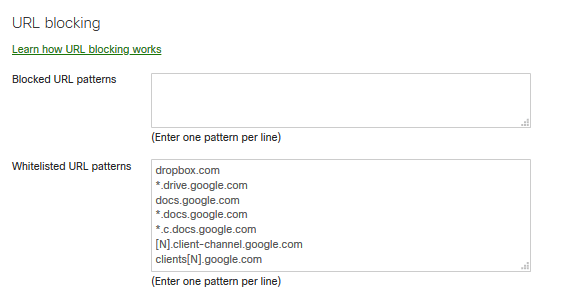
Note: The whitelist always takes precedence over the blocklist, so a request that matches both lists will be allowed
Step 6: Save your changes to the dashboard.
Alison Wallick, PEI