How to Set Your Presence Status in Microsoft Teams
There are a few different ways to change your Presence Status in Microsoft Teams. You can set your status manually or use the command bar.
Watch this video or use the instructions below to learn how.
Step-By-Step Instructions for Setting Presence in Teams
Your presence status lets your coworkers know if you’re at your desk and available for communication. Teams will automatically update your status based on your calendar and your activity. If you’re inactive for 5 minutes, your status will change to away. If you have a meeting scheduled, it will say, In a Meeting.
You can also set a duration for your Presence Status. For example, if you do not want to receive notifications for 30 minutes, you would set your status to Do not Disturb, and then set the duration time for 30 minutes.
Another feature in Teams is the ability to set a status message. If you want to let your coworkers know that you have stepped out for lunch, you can set your status message to “Gone for lunch. Will be back at 12:30.” and your coworkers will receive this message if they try to contact you via Teams.
To Set your Status Manually
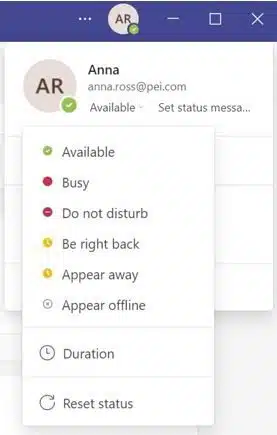
- Click on your photo in the top right corner
- Hover over your status and choose from the options
- If you want to set a time limit, you can select “Duration” and set your time frame
- If you want to set a message, you can select “Set status message”
Change Your Status with the Command Bar
- Type a forward slash to indicate to Teams you’re giving it a command
- Type in your desired status: /available, /busy, /dnd, /brb, /away, or /offline
- The command bar will let you know it’s completing your command
- Microsoft Teams will change your status
| Available | Indicates you’re at your desk and available for contact by chat or call | /available |
| Busy | Indicates you’re at your desk but busy working and wouldn’t like to be disturbed | /busy |
| Do Not Disturb | Silences all notifications, so no calls or messages from other users will come through | /dnd |
| Be Right Back | Indicates you are temporarily away from your desk | /brb |
| Appear Away | Appears to others that you are away; best used when you want to work without responding right away | /away |
| Appear Offline | Indicates that you are not signed into Teams; you will still receive notifications | /offline |