How do I change the cache location specified for the Azure Backup agent?
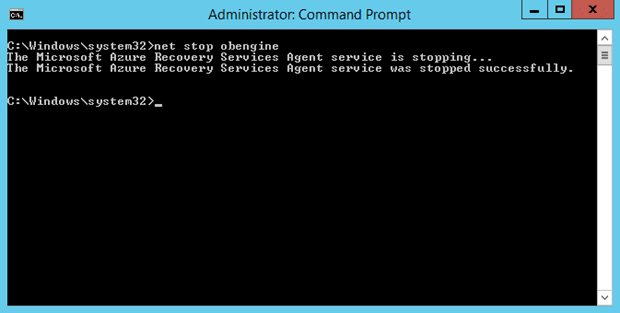
Stop the Backup engine by executing the following command in an elevated command prompt:
PS C:> Net stop obengine
Do not move the files. Instead, copy the cache space folder to a different drive with sufficient space. The original cache space can be removed after confirming the backups are working with the new cache space.
| Registry path | Registry Key | Value |
| HKEY_LOCAL_MACHINESOFTWAREMicrosoftWindows Azure BackupConfig | ScratchLocation | New cache folder location |
| HKEY_LOCAL_MACHINESOFTWAREMicrosoftWindows Azure BackupConfigCloudBackupProvider | ScratchLocation | New cache folder location |
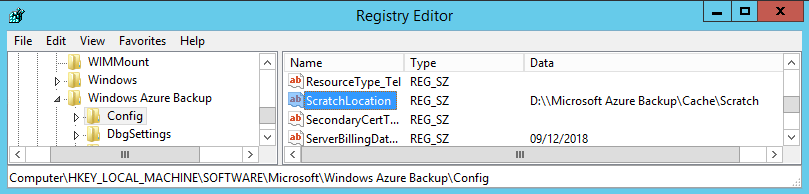
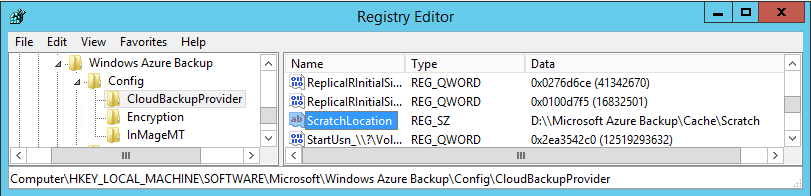
Update the following registry entries with the path to the new cache space folder.
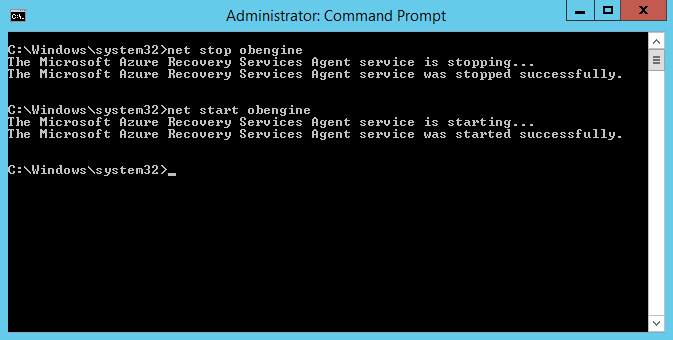
Restart the Backup engine by executing the following command in an elevated command prompt:
PS C:> Net start obengine
Once the backup creation is successfully completed in the new cache location, you can remove the original cache folder.
Brandon Stuart, PEI