Here’s a quick walkthrough on how to add and remove devices (MX series and Z1) from the Meraki Dashboard to keep everything in your network up to date.
How to Claim and Add a New Device
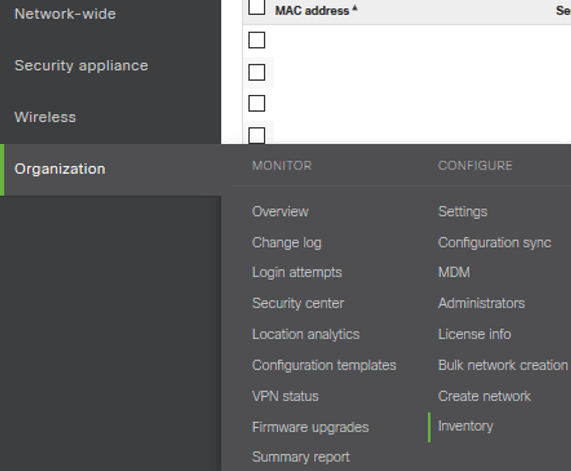
- Navigate to Organization > Inventory. From here, you should see a list of your current devices.

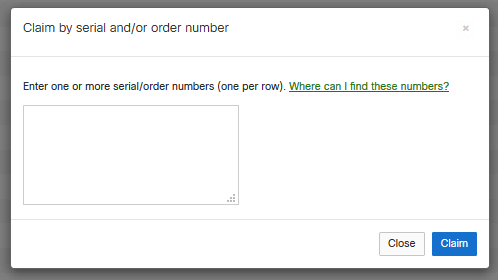
- Click on the Claim button towards the top right of the current device list.

- Enter the order or serial number and click Claim. The new device can now be added to your network.
- Navigate to Network-wide > Configure > Add devices. Select your newly claimed device to add it to an existing network.


Learn other networking basics like how to take and restore full Cisco ASA backups with ASDM.
How to Remove Devices (MX Series or Z1 Products)
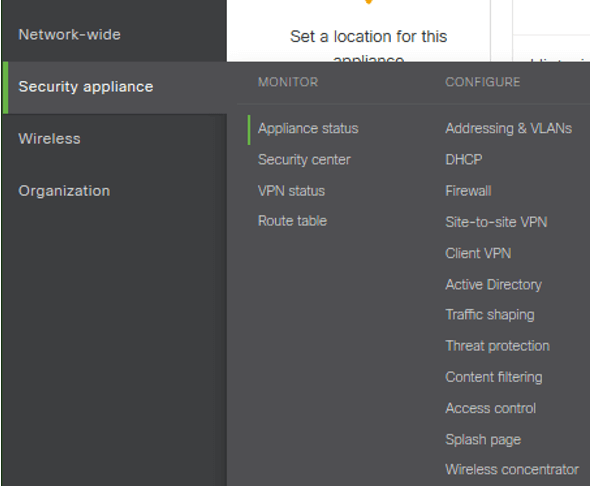
- Navigate to Security appliance > Monitor > Appliance Status

- Click on Remove appliance from network button on the bottom left corner of the page.
- Verify the Serial Number to make sure it is the correct device and click Remove.
Looking for more networking basics? Check out our similar posts on upgrading ASA and ASDM Images or setting up SSH and local authentication on Cisco ASAs. Can’t get enough? Subscribe to our blog below to be notified when we post more stuff like this!
Alison Wallick, PEI
Other Networking Basics:
Setting up Content Filtering on Meraki Devices
Taking and Restoring ASDM Backups
Setting up SSH and Local Authentication
Upgrading ASA and ASDM Images on New ASAs
Setting Up New Meraki Access Points
Upgrading an ASA ROMMON Version