If you need to upgrade the ROMMON version on your ASA, here is a quick guide. Note that you cannot downgrade ROMMON versions, only upgrade.
Here are the steps to Upgrade the ROMMON version:
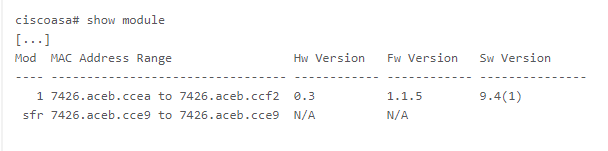
Before you begin: Verify your current version of ROMMON. The current version is listed under ‘Fw Version’
Step 1: Obtain the new ROMMON image from Cisco and put it on a server to copy. This example will be for TFTP.
Step 2: Copy the ROMMON image to the ASA flash memory:
copy tftp://server-ip/asa5500-firmware-xxxx.SPA disk0:asa5510-firmware-xxxx.SPA
Step 3: Upgrade the ROMMON image:
upgrade rommon disk0:asa5500-firmware-xxxx.SPA
Step 4: Confirm the reload when prompted on the ASA. The ASA will upgrade the ROMMON version and then perform a reload to complete the process.
Step 5: Verify the correct version of ROMMON is loaded after the upgrade.
show module
Alison Wallick. Network Support Engineer
Other Networking Basics:
Taking and Restoring ASDM Backups
Setting up SSH and Local Authentication
Upgrading ASA and ASDM Images on New ASAs
Setting Up New Meraki Access Points